An author’s worst nightmare is losing any document. Be it just a few lines or whole novels, if your computer shuts down unexpectedly while you’re working, you potentially lose hours upon hours of hard work. The smart person tends to click the “save” button, ctrl +s, or what have to make sure that their material isn’t lost. I didn’t think to do that before I went down stairs for a bit. Lucky for me, I have insomnia and an addiction to Youtube because I was able to recover all of my hard work. I’m going to share this with you because I think it might come in handy.
Please note that I am using Windows 7 and Microsoft Word 2013, so your results may vary.
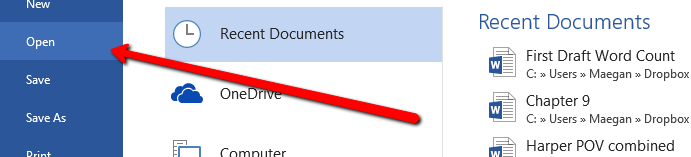
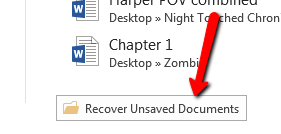
First, always to check your Recently Unsaved Folder. You can do that by going to File-> Open-> Scroll down to “Recover Unsaved Documents” -> Open

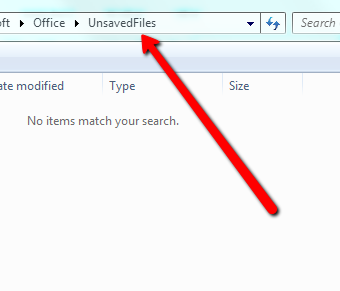
My most recent autosave didn’t take, apparently, but all is not lost. The alternative is to start by going to File-> Options -> Save, to see where your autorecover file saves to. This is typically the same for everyone but you might be different so it always helps to check.

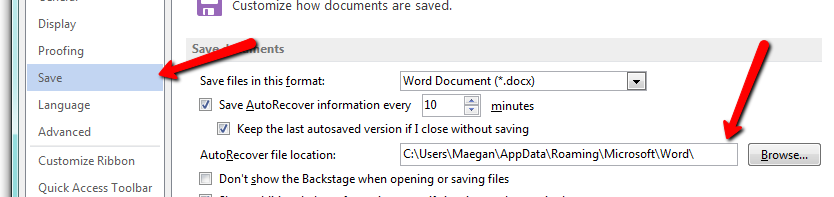
So, once you’ve found out where your autorecover saves to, go ahead and open it. Mine saved as a .asd file, so what I had to do when prompted was to select “Word 2013” as the default program. It will bring up a Read-Only file. Copy and paste, or whatever you need to do BUT SAVE IT IMMEDIATELY!!
Don’t be me, save your work, but if you do mess up, this will SAVE YOUR BUTT!!!


 Author Maegan Provan
Leave a reply to Maegan Provan Cancel reply